FULCRUM · Invoices and inventory intake
Give incoming inventory a record your team can work from.
Manage supplier invoices, review their status and work through inventory intake in Fulcrum. Keep the buying record connected to the stock your store is bringing in.
Make the workflow fit your store.
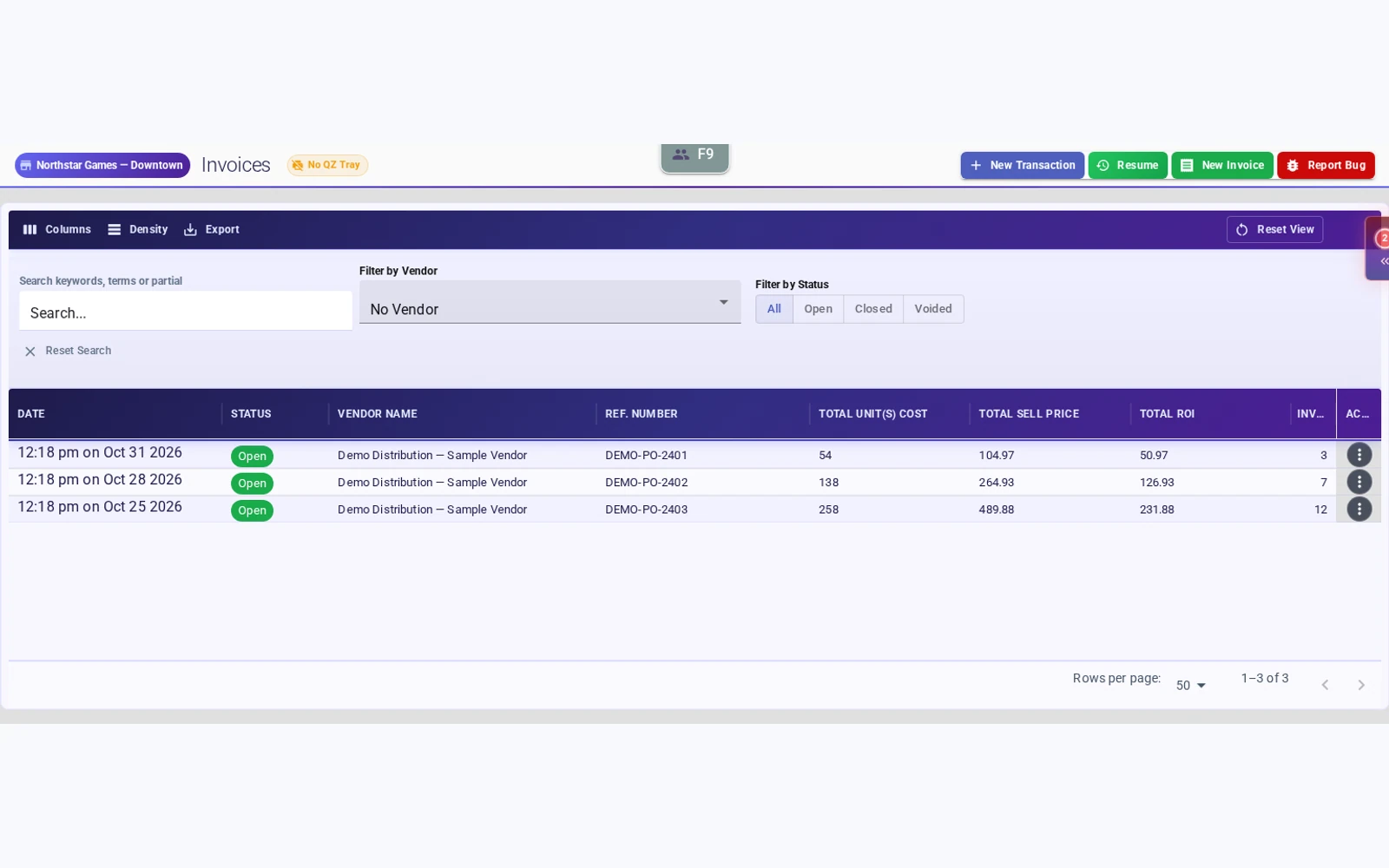
Find the invoice.
Use the invoice list to review records, supplier information and status. Open a working invoice to check its contents before approval.
Explore inventory toolsReview before approval.
Check the items your team is receiving and work through the invoice approval step. Approval closes the invoice and imports its items into stock.
See invoice intake in a demoKeep store context in view.
Review invoicing alongside the locations in your organization. Walk through the location focus your team needs when receiving stock for multiple stores.
Explore multi-store administrationReceive stock with condition and subquality in view.
Set each intake line’s main condition and, when useful, an optional subquality. Record a Complete In Box item as Good, for example, or choose a card-specific description such as Lightly Played.
Invoice lines keep the selected subquality alongside quantity, cost and selling price. When the invoice is approved and its items are imported, that subquality carries onto the resulting stock records.
Use separate lines when copies need different assessments. Review those details before approval so the stock record reflects what your team actually received.
See how the same detail supports trade-in pricing and intake.
Keep stock intake distinct from the customer receipt.
Supplier invoices support incoming inventory. Customer transaction history helps your team find past purchases, trades and returns by product, SKU or UPC. See both workflows in a store-specific demonstration.
Explore customer history and accounts, scheduled in-store sales and Shopify integration.